

Command Terminals and VScode: A Beginner's Guide

Annyeong 👋🏾 I'm an optimized solution seeker with a passion for building better user experiences.
With experience in UX design/research in FinTech & eCommerce, I bring a unique perspective to problem-solving and love finding creative solutions to difficult challenges.
My goal is to shape products that have a positive impact on users, whether that means making them more user-friendly, more efficient, or more accessible to a wider audience.
When I'm not buried in UX design problems, you can find me fumbling my way through coding projects. But hey, at least I never give up! 😁
Bonus Fun Fact: I am a little obsessed with K-drama 🎭
Annyeong👋🏾!
If you're new to coding, you may have heard about command terminals and are probably wondering what they are and why you need them. In this post, we'll explore the command terminal and how it works on different operating systems like Windows, Mac, and Linux.
So, what is a command terminal? It's basically a way to interact with your computer through text commands. Instead of using a graphical user interface (GUI), you can enter commands and get things done faster.
Windows OS
Let's start with Windows. The command terminal in Windows is called Command Prompt. You can open it by pressing the Windows key + R and typing "cmd" in the Run dialog box. This will open up the Command Prompt window. Here, you can type in various commands to perform tasks like copying files, renaming files, and more. Check out Microsoft's Command Prompt reference for an exhaustive list of command prompts you can explore for various actions. Some examples are below 👇
Command Description dirLists the contents of a directory. cdChanges the current directory. clsClears the screen. ipconfigDisplays the IP configuration of a network connection. pingTests network connectivity to a specific IP address or domain name. tasklistDisplays a list of currently running processes. netstatShows active network connections and their status. mkdirCreates a new directory. rmdirRemoves a directory. copyCopies files from one location to another. delDeletes files. moveMoves files from one location to another. typeDisplays the contents of a text file. echoPrints a message to the terminal or writes it to a file.
Mac OS
Mac users have Terminal, which is similar to Command Prompt in Windows. You can find it in the Utilities folder in your Applications folder. Once you open Terminal, you can start entering commands to do things like managing files and folders, launching apps, and more. Apple's Terminal User Guide, provides explanatory information on how to execute different commands depending on your mac version. Some examples are below 👇
Command Description lsLists the contents of a directory. cdChanges the current directory. clearClears the screen. ifconfigDisplays the IP configuration of a network connection. pingTests network connectivity to a specific IP address or domain name. psDisplays a list of currently running processes. topShows system processes and their resource usage. mkdirCreates a new directory. rmdirRemoves a directory. cpCopies files from one location to another. rmDeletes files. mvMoves files from one location to another. catDisplays the contents of a text file. echoPrints a message to the terminal or writes it to a file.
Linux OS
Linux users have access to the terminal as well. In Linux, there are different terminal emulators available, but the most common one is called Bash. You can access it by opening the Terminal application or by pressing Ctrl + Alt + T on your keyboard. Like in Windows and Mac, you can use various commands to accomplish different tasks. Use this link for Linux Commands Cheat Sheet. Some examples are below 👇
Command
Description
cat > filenameCreates a new file
cat filenameDisplays the file content
cat file1 file2 > file3Joins two files (file1, file2) and stores the output in a new file (file3)
mv file "new file path"Moves the files to the new location
mv filename new_file_nameRenames the file to a new filename
sudoAllows regular users to run programs with the security privileges of the superuser or root
rm filenameDeletes a file
manGives help information on a command
historyGives a list of all past commands typed in the current terminal session
A little bonus on VScode
Now that you know a little more about command terminals, let's talk about VScode. VScode is a free and open-source code editor that works on Windows, Mac, and Linux. It's packed with features that make coding a breeze, and it's especially great for beginners because it's easy to use.
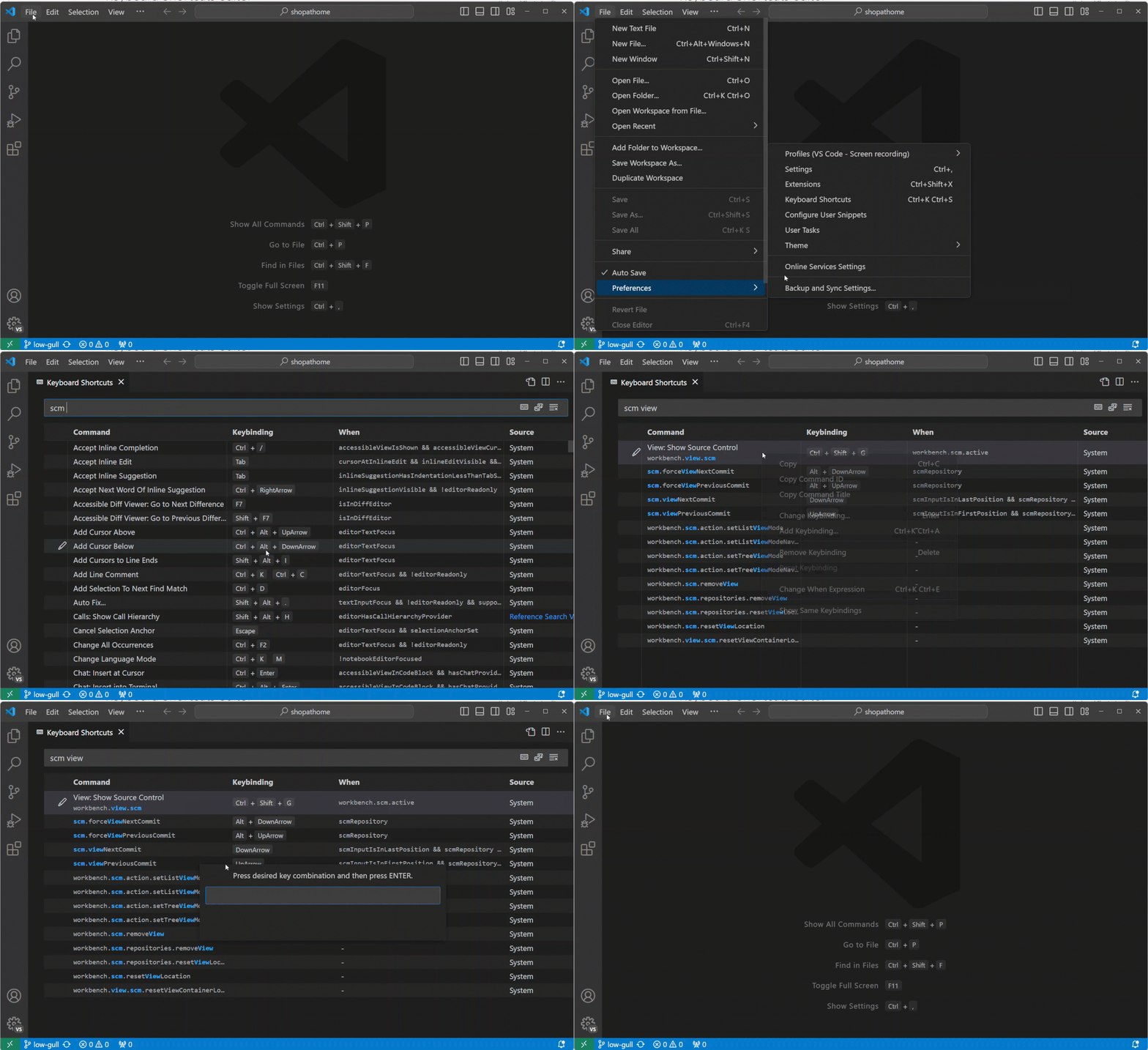
To get started with VScode, simply download it from their website and install it on your computer. Once you've done that, you can open VScode and start coding. The interface is clean and easy to navigate, and there are plenty of extensions available that can enhance your coding experience. Explore Visual Studio Code Keyboard Shortcuts here.
Remember, command terminals and code editors are your trusty companions on your coding journey. They won't judge you if you make a mistake, and they won't give you a hard time if you forget a command. They're always there to help you get your code in shape. So, don't be afraid to flex those coding muscles and give your keyboard a workout.


